Glam Sign · User Manual
ADVPRO Glam Sign
A dynamic RGB LED neon sign with 3D surface & line engraving, controlled from the mini controller, the optional remote or the duoCo StripX app.
- USB powered
- App & remote control
- 50,000h lifespan
Before you start
Please check the package contents before installation. We recommend wearing the included gloves throughout the installation to avoid leaving fingerprints on the sign.
In the box
- ADVPRO Dynamic Glam LED Sign
- Gloves
- Installation pack
- Operation manual
What is not included
- Remote controller — optional, included with selected packages only
Highlights
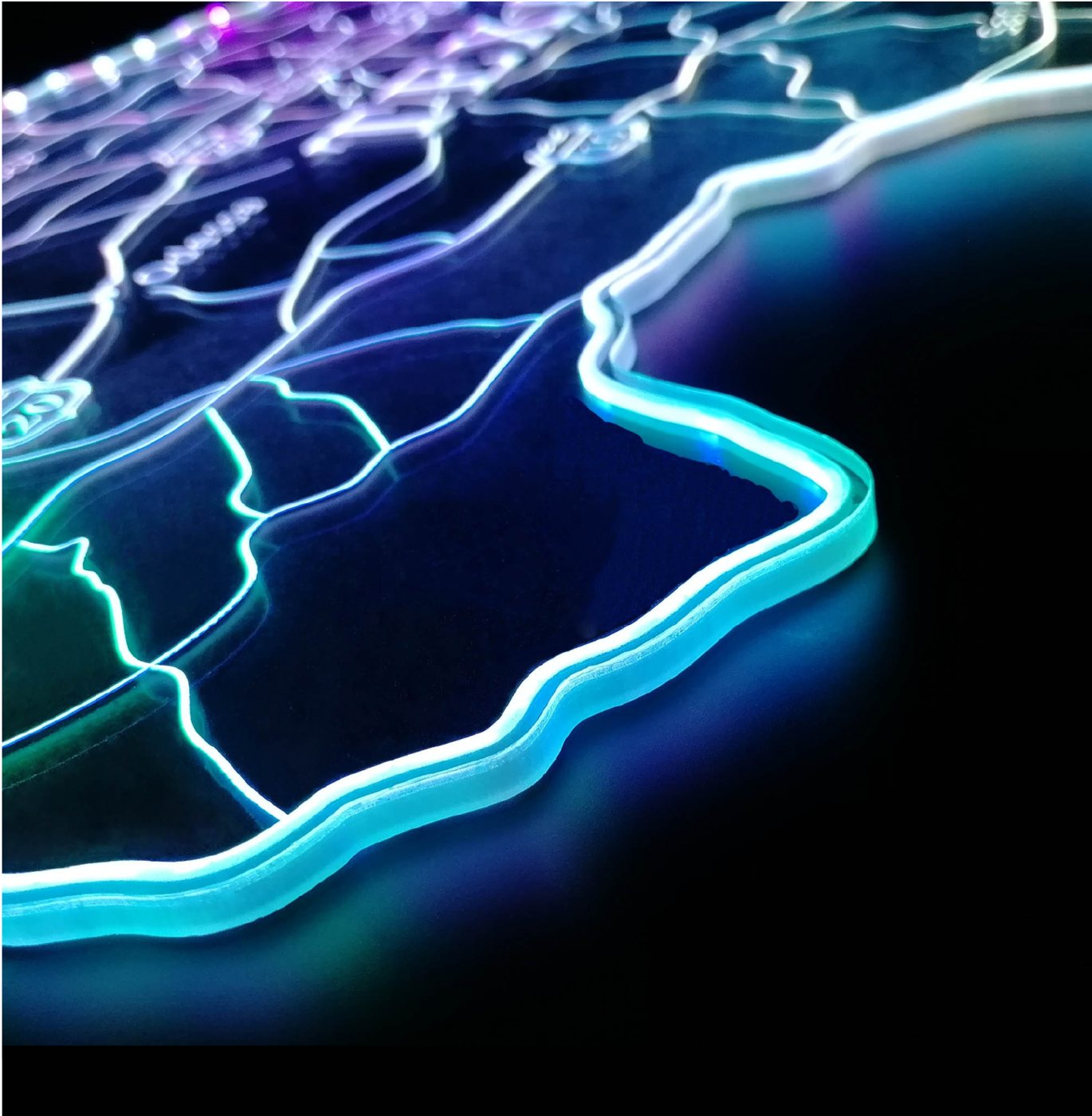
- 3D craveSurface & line engraving technology
- Low heatSafe to use or touch
- Free of hazardsNo noxious gas & mercury, no periodic refill needed
- 50,000 hExtra-long life span
Product overview
Tap a part to see what it does.
Setup & Installation
Follow these steps to get your sign up and running. Tick each step as you go.
0 of 5 steps done
- 1
Sign installation
Install the LED sign with the enclosed installation kit. It is advised to wear the enclosed gloves throughout the installation to avoid leaving fingerprints on the sign.
- 2
Connect with parts and USB power
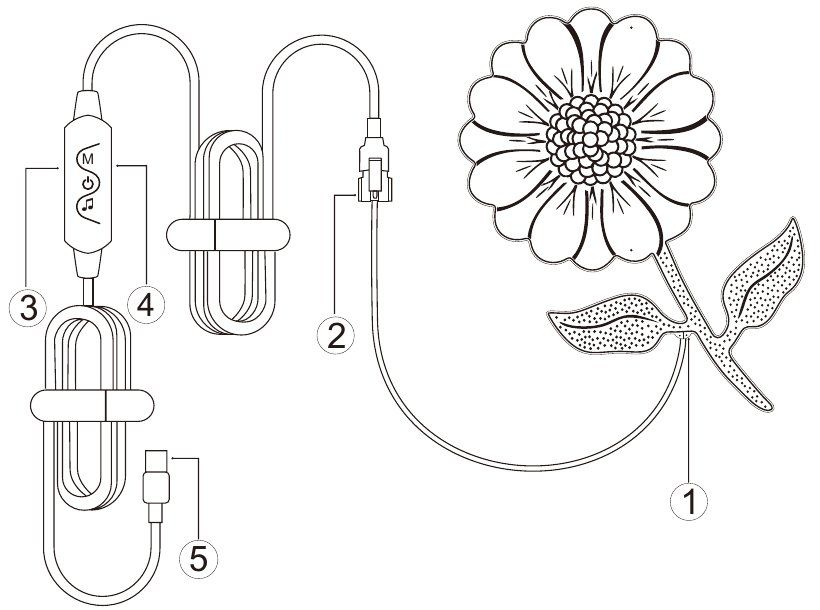
Connect the ① LED sign with the ③ remote control unit and connect the ⑤ USB plug to the power outlet.
- 3
Download the app
You can use the duoCo StripX app to set up and control your LED sign. Search “duoCo StripX” in the Apple App Store or Google Play Store, or scan the QR code below. The ④ QR code is also printed on the ③ remote control unit.

- 4
Bluetooth pairing
Once the app is downloaded, turn on Bluetooth on your phone, power on the LED sign, and then open the app. The app will automatically pair with the LED sign.
For Android phones, please make sure the location function is enabled and the app has the necessary permissions.
- 5
Successfully connected
Once the connection is established, you can control the colour, brightness and lighting effect of the LED sign with the app.
App Control (duoCo StripX)
Connect the sign in the app, then choose a feature below to see how it works.
Connection instructions
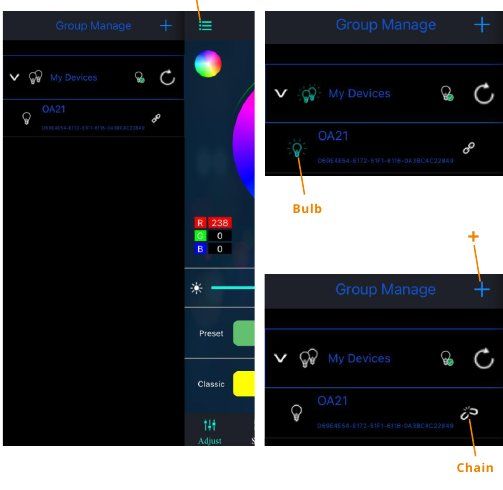
- After launching the app, tap the Menu button in the top-left corner, then tap the refresh icon. The app will search for nearby devices.
- Once the device is found, tap the Bulb button to turn on the light.
- Tap the Chain button to disconnect / reconnect the sign.
- Alternatively, tap + to create a group for controlling multiple signs.
Colour selection
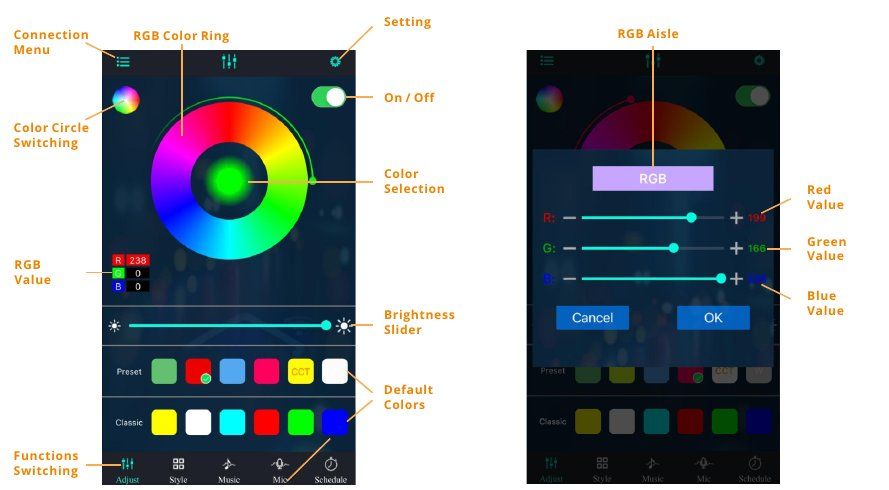
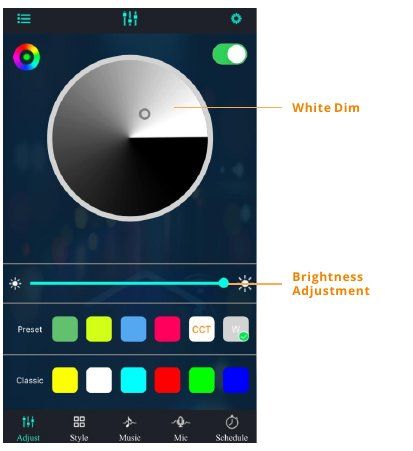
There are 3 ways to adjust the colour and brightness of your LED sign: RGB colour ring, RGB aisle (red / green / blue values) and White dim.
Predefined dynamic modes
There are over 200 predefined dynamic modes to choose from. You can change any dynamic mode by adjusting the speed to your preference.

Music / sound rhythm mode
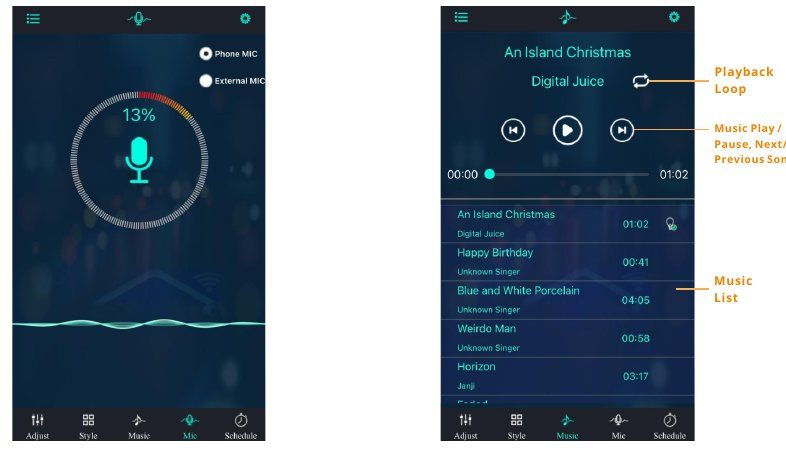
Customise your dynamic mode to follow your music rhythm or surrounding sound. Use the phone microphone, or play songs from the music list with loop, play/pause and next/previous controls.
Timer
Set a timer to turn the LED sign on / off with your preset dynamic mode. Switch the light-up and light-off schedules on or off, then set the time and repeat days for each.

Advanced settings
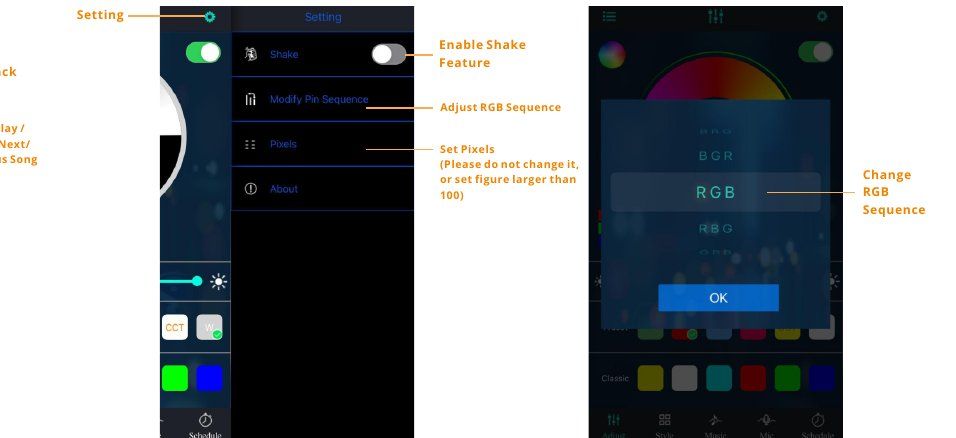
Shake feature, RGB sequence and pixels can be set here.
Care & Troubleshooting
Tap a topic to expand it.
The sign cannot connect to the app
- Check that the power supply is working properly and that Bluetooth is on.
- Make sure no other phone is connected to the sign – Bluetooth 4.0 supports one-to-many connections, not many-to-many.
- Check the Bluetooth setting in the app to see if the phone is connected. If it is connected but not working, exit and reopen the app; it will reconnect automatically.
- If the app cannot connect, or operation is not enabled, exit the app and reopen it to try again.
- Exit the app, restart your phone, power on the sign and restart the app – they will connect automatically.
The sign doesn’t light up or arrived damaged
- Check whether the cord or the light is not well connected.
- If the problem cannot be solved, please contact us as soon as possible before leaving feedback – we are happy to replace any defective parts and make sure your product works well.
Cleaning the acrylic plates
- If you want to clean the acrylic plates of the sign, car wax is recommended if necessary.
- Wear the included gloves to avoid fingerprints.
Safety warning
- Keep electric devices away from children.
- Never use a device that has had water spilled on it.
- If touching the device causes a tingling sensation, switch it off at the power point and have it checked.
Warranty
- Your ADVPRO Glam Sign comes with a 1-year limited warranty.
Need help?
Contact ADVPRO support
Thank you for your purchase – we hope you enjoy your ADVPRO Glam LED sign. Please include a photo or short video of the issue when you contact us.